A fun and easy guide to installing your email signature
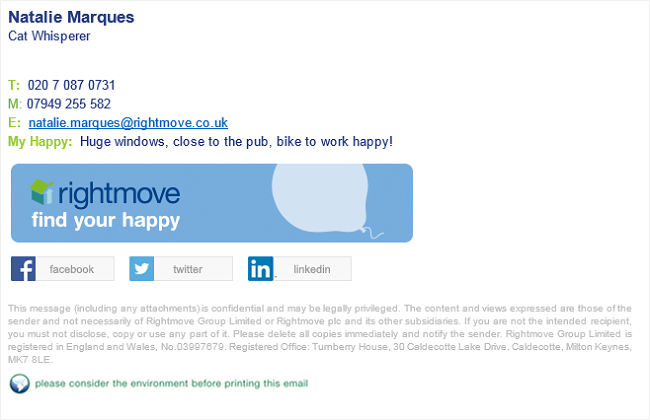
1. Click here to run an email signature script.
2. Click OPEN.
3. It will prompt you to press any key to continue… do it. Your new email signatures are now automatically loaded to your computer.
4. Open a new email and click on ‘Signature’ and then choose ‘Signatures…’ in the drop down menu (see below)
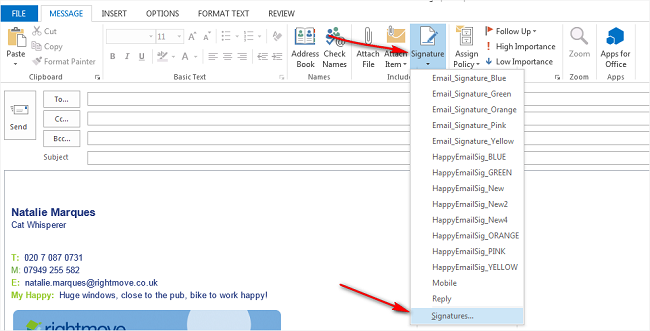
5. (I’ve letter coded these next steps so it’s as simple as possible to use)
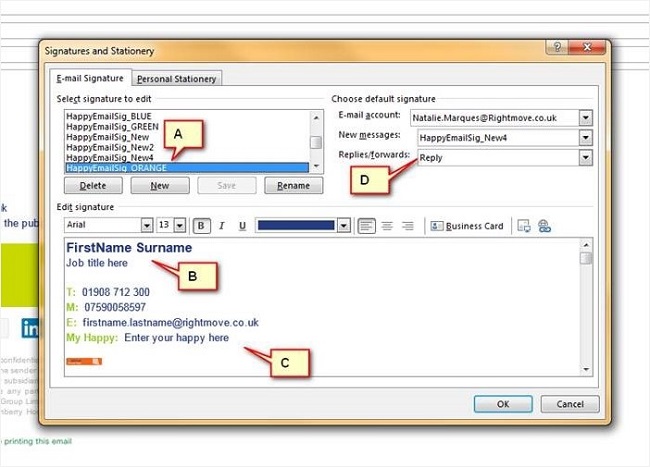
- A. Choose which colour signature you’d like to edit and display on your emails. You can pick from 5 colours / shapes:
- Happy_BLUE
- Happy_YELLOW
- Happy_ORANGE
- Happy_PINK
- Happy_GREEN
- B. The contact details are default, so please edit your name, job title and contact details to personalise it to you.
- C. We’ve added a line so you can add your happy! For example, mine is “Massive windows, close to the pub, bike to work happy!” If you’d like to add yours, please do, otherwise delete the line.
- D. In area D on the screen grab above, you can choose which email signature you’d like to use for your new messages and replies, you could have orange for new and blue for replies for example!
6. Click ‘OK’ and off you go.
7. Send an email with your new email signature to marketing@rightmove.co.uk so we can check that you’re looking perfect.
If you have any issues with installing your email signature, please email help@rightmove.co.uk.